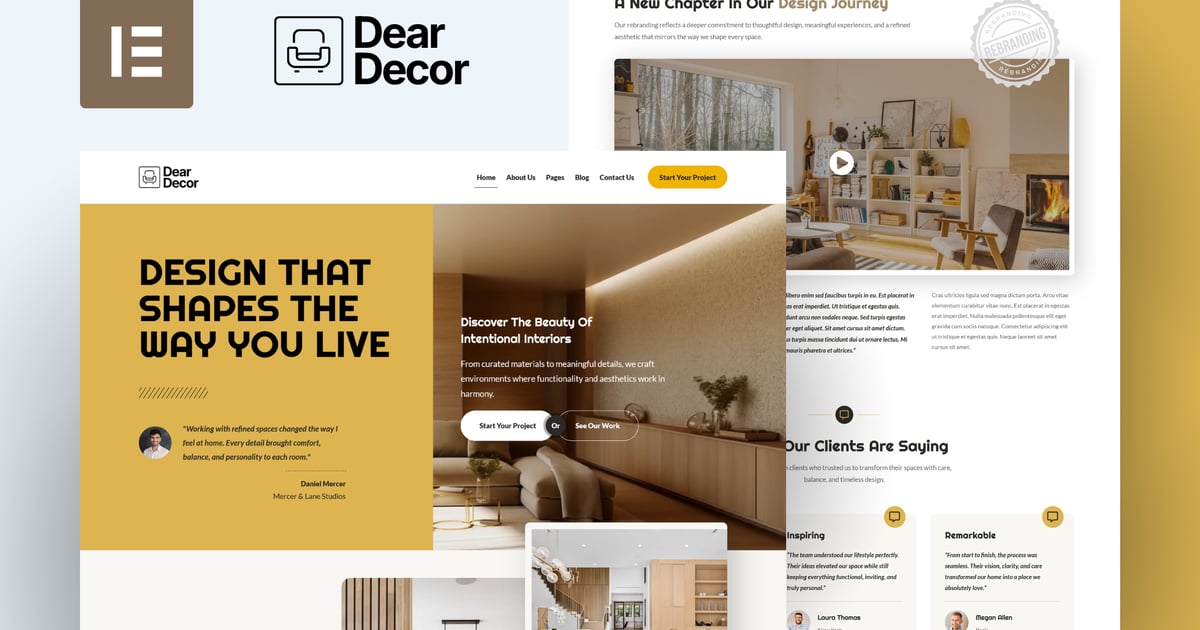
Description
DearDecor is an elegant and refined Elementor Template Kit crafted for interior designers, home stylists, and boutique studios who value timeless aesthetics, functional beauty, and elevated storytelling. Featuring warm tones, editorial layouts, and a harmonious visual system, this kit is perfect for presenting services, portfolios, design philosophies, and client testimonials in a sophisticated and modern way.
Elementor Template Kits include page content for the Elementor page builder. This kit has been optimized for use with the free Hello Elementor theme but is compatible with most themes that support Elementor.
Layout Features
-
Elegant & Editorial Design: A clean, contemporary visual direction tailored for interior design studios, decorators, architects, and home styling services.
-
Built with Elementor: Fully created using free Elementor widgets, no Elementor Pro or custom coding required.
-
Immersive Homepage Experience: Includes a hero layout, service highlights, featured projects, testimonials, statistics, blog previews, and strong CTAs.
Professional Page Structure: Includes essential pages like About, Services, Portfolio, Blog, Contact, Careers, and in-depth project templates.
-
Purpose-Driven Copy & Layout:</strong> Designed to communicate trust, expertise, and refined aesthetics across every section.
-
Fully Responsive: Meticulously optimized for seamless viewing on desktop, tablet, and mobile.
-
Ideal for:</strong> Interior designers, decorators, architects, home staging professionals, renovation specialists, and premium creative studios.
What’s Included in the Zip
- Home
- About Us
- Services
- Portfolio
- Portfolio Details
- Contact Us
- Testimonials
- Blog Archive
- Post Details
- Careers
- 404
- Coming Soon
- Header
- Footer
- Global Kit Styles
Plugins Installed with the Kit
- The Plus Addons for Elementor
- Nexter Extension
How to Use Template Kits
This is not a WordPress Theme. Template Kits contain design data for Elementor only and are installed using the Envato Elements plugin or directly through Elementor.
Elementor Template Kits use the Template Kit Import plugin to install.
Detailed Guide:
https://help.market.envato.com/hc/en-us/articles/36033428836889-How-to-Upload-Install-Elementor-Template-Kits-from-Themeforest-to-WordPress
For further support, go to Elementor > Get Help in the WordPress menu.
How to Configure the “Single Post”, “Archive Blog”, “404”, “Header”, and “Footer” Templates Using the Nexter Extension Theme Builder plugin
This kit was built using the Nexter Extension theme builder to ensure full flexibility without requiring Elementor Pro. However, if you are using Elementor Pro, you can still import and manage all templates through the native Elementor Pro Theme Builder without any issues. All templates are fully compatible and will function normally in either setup.
Single Post Template
-
After installing and activating The Plus Addons for Elementor, go to The Plus Addon for Elementor > Widgets and ensure the following widgets are enabled: Post Title, Post Content, Post Featured Image, and Post Comment.
-
Confirm that the Nexter Extension plugin is installed and activated. Then navigate to: Nexter Extension > Theme Builder > Single and click Add New Template.
-
Under Select Template, choose Pages > Singular, enter a name for your template, and click Next.
-
In Set Display Conditions, select Posts > All Posts in the first dropdown. Under Preview Type, choose Posts > All Posts, then click Next.
-
Edit the newly created template by clicking Edit with Elementor.
-
Inside Elementor, click the folder icon next to the “+” button, go to the Templates tab, select Single Post (Nexter Extension), click Insert, and then Apply.
Archive Blog Template
-
After installing and activating The Plus Addons for Elementor, go to The Plus Addon for Elementor > Widgets and ensure the following widgets are enabled: Post Title, Post Content, Post Featured Image, and Post Comment.
-
Confirm that the Nexter Extension plugin is installed and activated. Then navigate to: Nexter Extension > Theme Builder > Archive and click Add New Template.
-
Under Select Template, choose Pages > Archives, enter a name for your template, and click Next.
-
In Set Display Conditions, select Posts > Default Posts Archive. Under Preview Type, choose Posts > Default Posts Archive, then click Next.
-
Edit the newly created template by clicking Edit with Elementor.
-
Inside Elementor, click the folder icon, go to the Templates tab, select Archive Blog (Nexter Extension), click Insert, and then Apply.
This Template Kit uses demo images from Envato Elements. You will need to license these images from Envato Elements to use them on your website, or you can substitute them with your own.<br/><br/>
Image license
- https://elements.envato.com/collections/AP3CMLZJ8W